
How to combine scanned documents for a job application
By MomoPDF · · 4 min read
Many job portals ask for a single PDF: your CV, a cover letter, and copies of certificates or ID. Here’s how to put them together in a few minutes. Everything happens in your browser, so your ID and certificates are never sent to a website’s server.
What you need
- Your CV and cover letter as PDFs. In Word or Google Docs, use Save as PDF or Download → PDF.
- Photos or scans of your other documents, as JPG or PNG images.
Tip for photos: put the paper on a dark, flat surface in good light, hold the phone straight above it, and fill the frame with the page.
Step 1: Turn your photos into a PDF
- Open Images to PDF and choose your photos.
- Put them in order with the arrows or by dragging. Each image becomes one page.
- Pick a page size: A4 is used in most countries, US Letter in the US and Canada. A Small margin looks neat when printed.
- Select Create PDF, then Download PDF.
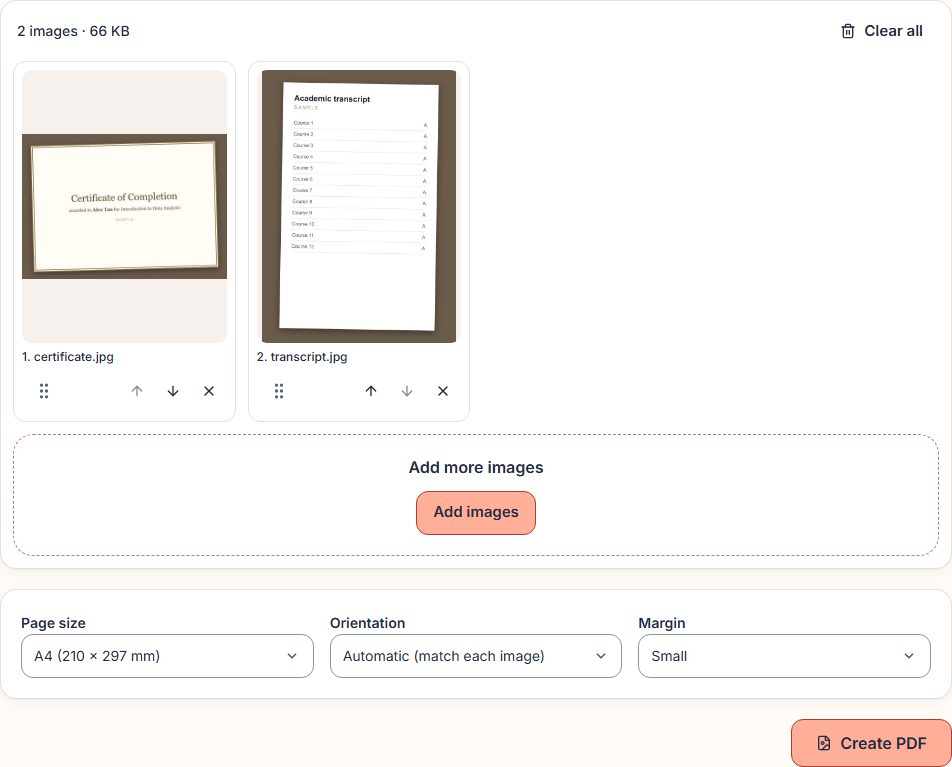
Photos taken on a phone come out the right way up, the same way they look in your gallery.
Step 2: Merge everything into one file
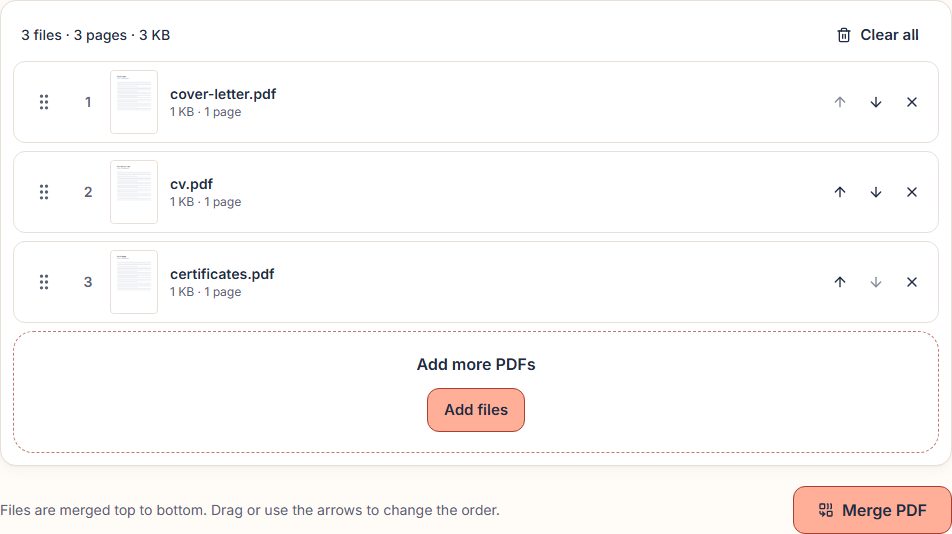
- Open Merge PDF.
- Choose your CV, your cover letter and the PDF you made in step 1.
- Drag them into the order the employer asked for. A common order is cover letter, CV, then certificates.
- Select Merge PDF, then Download PDF.
Step 3: Check before you send
- Open the file and scroll through every page. Is everything readable?
- If a page is sideways, fix it with Rotate PDF.
- Give the file a clear name, such as
firstname-lastname-application.pdf.
Good to know
- File size limits. Some portals only accept small files, and phone photos are large. MomoPDF can’t make PDFs smaller yet. If your file is too big, try your phone camera’s lower-resolution setting, or crop the photos before adding them.
- Formats. Images to PDF accepts JPG and PNG. If your phone saves HEIC photos, change the camera’s format setting to “Most Compatible” (on iPhone), or export the photos as JPG first.
- Limits. Each file can be up to 100 MB. There’s no limit on the number of pages.